Guides
How to Hide Files on iPhone: Lock Files or Move Them to a Private Vault
Mehmet Ali Kısacık · Developer of Secure Folder · October 4, 2026 · 3 min read
How to hide files on iPhone depends on whether you want to protect the whole Files app or just a few items. Files does not offer a Hide command for an individual file or folder, so you can either lock the Files app or move selected files into a separate vault.
Hide private photos in a PIN-protected vault.
Secure Folder is free to download on the App Store, and your photos and videos stay on your iPhone.
In this article
Lock the Files app with Face ID
If you want to keep everything in Files out of view when someone else uses your phone, locking the app itself is the simplest approach. You do not have to move individual files.2
Lock the Files app
- 1.
Press and hold Files
Touch and hold the Files app until the Quick Actions menu opens.2
- 2.
A locked app requires Face ID, Touch ID, or the iPhone passcode to open, and information inside a locked app stays out of iPhone Search. Because this is an app-level lock, it covers the documents and other files in Files as a group rather than hiding one selected file or folder.1,2
Hide particular files in a separate vault
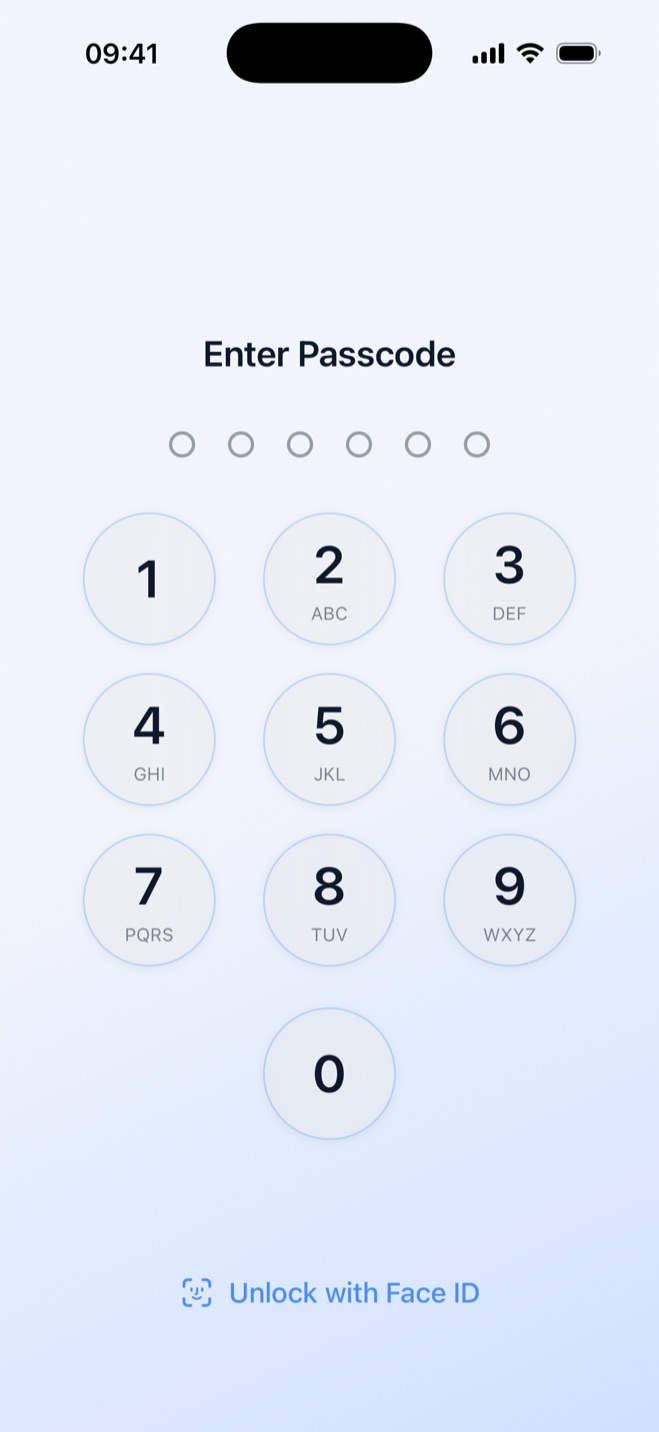
If you still need to use Files normally and only a few items are private, a vault is a better fit. Secure Folder: Privacy Vault imports files into its own hidden gallery, which opens after the vault is unlocked. This keeps those private items separate from the files you browse every day.
Inside Secure Folder, you can organize vault content into folders, each with its own color and cover. That gives you a practical way to keep different sets of private documents apart without locking the rest of the Files app.
Use a separate PIN for hidden files
Secure Folder uses its own 6-digit PIN, set at first launch and separate from the iPhone passcode. The iPhone passcode does not open the vault, which is useful when a partner, family member, or someone borrowing the phone already knows that passcode.
You can change the vault PIN later in the Security tab under Change PIN.
Choose whether the original stays in Files
When you import a file from Files, Secure Folder lets you keep the original there or remove it. Keeping the original leaves that copy available in Files, while removing it leaves the private copy in the vault instead.
The vault stays local on the iPhone, and your files are not uploaded to a server or iCloud. Secure Folder also does not require an account or e-mail.
Sources
- 1.Apple, “Organize files and folders in Files on iPhone,” support.apple.com
- 2.Apple, “Lock or hide an app on iPhone,” support.apple.com