Guides
How to Lock Files on iPhone With Face ID or a Separate PIN
Mehmet Ali Kısacık · Developer of Secure Folder · October 4, 2026 · 3 min read
How to lock files on iPhone depends on whether you want to protect the whole Files app or only selected files. Files does not provide a lock for one file or folder, but iPhone can require Face ID, Touch ID, or the device passcode to open the whole Files app, while a vault app can place chosen files behind a separate PIN.
Hide private photos in a PIN-protected vault.
Secure Folder is free to download on the App Store, and your photos and videos stay on your iPhone.
In this article
Lock the whole Files app with Face ID
Apple's built-in option locks the Files app itself, not an individual document or folder. Once enabled, opening Files requires Face ID, Touch ID, or the iPhone passcode, and the app locks again after you quit it.1,2,3
Turn on the built-in Files app lock
- 1.
Open the Files app menu
Touch and hold the Files app until its Quick Actions menu appears.1
- 2.
This works when you want all of Files protected by the same lock. If you wanted a password on just one file or folder, the built-in lock does not work at that level.1,2,3
What the iPhone passcode still opens
When an app is locked this way, the iPhone passcode is still one of the accepted ways to open it. That makes the built-in lock useful when someone has your unlocked phone but does not know your passcode, but it does not create a second code for Files.1
If the person you want to keep out already knows your iPhone passcode, use a separate vault PIN for the files you want protected by a different code.
Lock selected files with a separate PIN

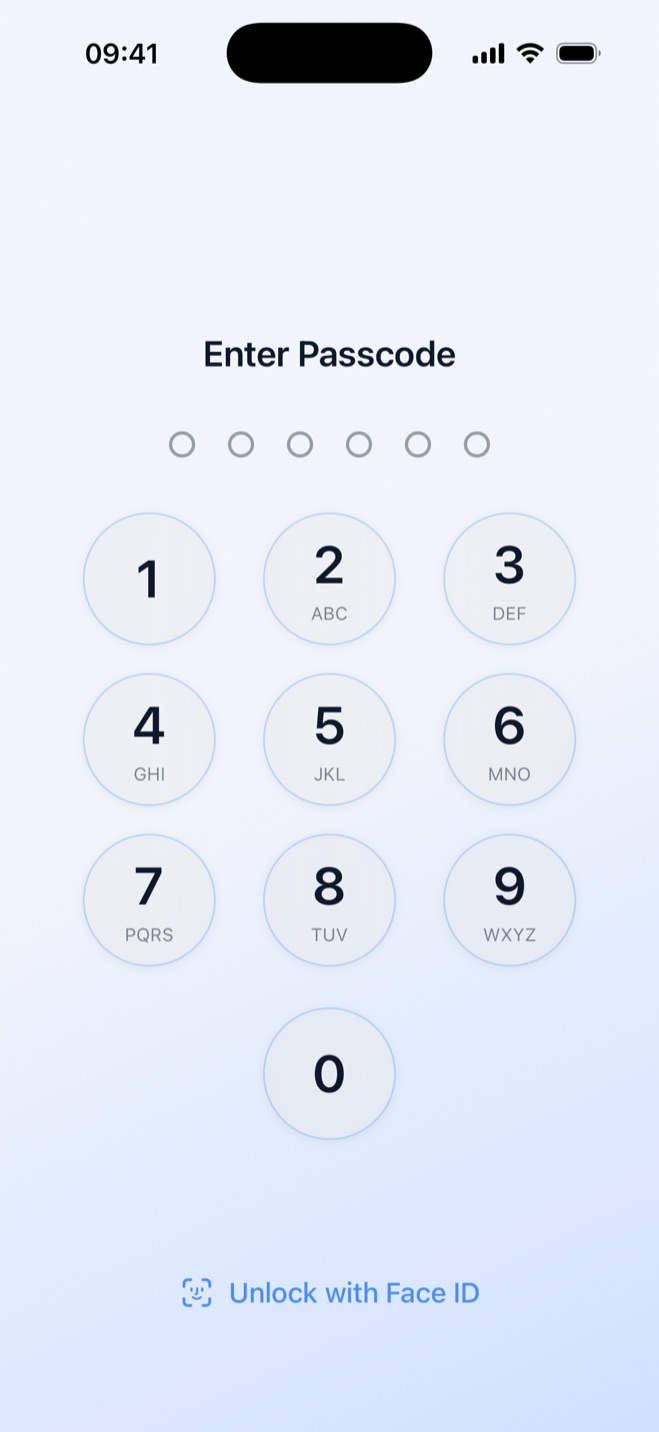
Secure Folder: Privacy Vault is a private photo vault app for iPhone with its own 6-digit PIN. You set that PIN at first launch, and it is separate from the iPhone passcode, so the iPhone passcode does not open the vault.
Instead of locking every item in Files, you import the files you want to protect into Secure Folder. They appear in the vault's own gallery and stay behind the vault lock until you unlock it.
Choose what happens to the original file
After you import a file from Files, it lives in the vault gallery, and you choose whether to remove the original from Files or keep it there.
Use Face ID or Touch ID instead of typing the PIN
Face ID or Touch ID can open the vault instead of the 6-digit PIN. Turn it on in the Security tab, then you can unlock without typing the PIN each time.
If you forget the vault PIN, Face ID or Touch ID can open the vault, and you can set a new PIN under Security > Change PIN.
Sources
- 1.Apple, “Lock or hide an app on iPhone,” support.apple.com
- 2.Apple, “Files basics,” support.apple.com
- 3.Apple, “Organize files and folders in Files on iPhone,” support.apple.com