Guides
Can You Password-Protect Photos on iPhone? A Step-by-Step Guide
Mehmet Ali Kısacık · Developer of Secure Folder · July 14, 2026 · 8 min read
Key takeaways
- The Hidden album locks with the same Face ID, Touch ID, or passcode that unlocks the rest of the phone, and it syncs through iCloud, so it isn't a genuinely separate password.
- Locking photos inside a Notes app note uses a password that's tied to the Notes app itself, not your Apple ID, if you forget it, Apple cannot help you recover it.
- A dedicated vault app like Secure Folder uses a PIN that's independent of your iPhone's passcode, so knowing the phone's passcode alone won't open the vault.
- Secure Folder is free to download with a limited number of imports, and the core vault, decoy vault, and stealth icons work without paying, unlimited imports, intruder alerts, and widgets require the Incogni Pro upgrade.
- Secure Folder has no account and doesn't upload vault content anywhere, the only data it transmits is anonymous usage analytics that contains nothing from inside the vault.
- Stealth mode disguises the app's icon and name as one of nine ordinary-looking apps throughout the system, including search and the App Library, but the icon still opens to the vault's lock screen rather than a working version of that other app.
If you’ve ever handed your unlocked iPhone to someone—to show a single picture, or let a child play a game—you know the flicker of anxiety. The Photos app holds your most personal moments, and a simple swipe can take a viewer where you didn’t intend.
1. Use the Built-in Hidden Album (iOS 16 and Later)
You might have searched for “password protect photos iPhone” because you want a barrier that isn’t just the phone’s main passcode. Apple gives you a couple of built-in ways to tuck photos out of sight, and a separate category of apps can offer a dedicated vault behind an independent PIN. This guide walks through all three, so you can decide which level of protection fits your life.
Since iOS 16, the Hidden album in the Photos app can be locked behind Face ID, Touch ID, or your device passcode. It’s the simplest built-in option, but it has limits you should understand.
How to hide a photo
- Open the Photos app and select the photo or video you want to hide.
- Tap the three-dot menu (•••) in the upper-right corner.
- Choose Hide. Confirm when prompted.
Locking the Hidden album
The item disappears from your Library view and moves into the Hidden album—found under Albums > Utilities.
By default, the Hidden album isn’t shown at all. To make it visible and lock it:
- Go to Settings > Photos.
- Turn on Show Hidden Album.
- Below that, ensure Use Face ID / Touch ID is enabled (on by default in iOS 16+).
What the Hidden Album does—and doesn’t—do
Now when you open the Hidden album, you’ll need to authenticate with Face ID, Touch ID, or your passcode.
- Locks behind biometrics – The album isn’t visible in the main Library and requires authentication to open.
- Syncs with iCloud – Hidden photos are still part of your iCloud Photos library and will appear on other devices signed into the same Apple ID.
- Shares the same authentication as the phone – Anyone who knows your device passcode can unlock the Hidden album, since Face ID/Touch ID fall back to the passcode.
2. Lock Photos in the Notes App
If you want a separate password that’s different from your phone’s passcode—or if you don’t want hidden photos syncing across devices—you’ll need to look beyond the native Photos app. The Notes app lets you lock individual notes with a unique password. By pasting photos inside a note, you can effectively protect them behind a password that’s independent from your device passcode.
Steps
- Open Notes and create a new note.
- Tap the camera icon above the keyboard and choose Choose Photo or Video to insert your images.
- Once added, tap the three-dot menu (•••) at the top of the note and select Lock.
- You’ll be prompted to set a password if you haven’t already (or use the Notes password you’ve previously created).
- After locking, the note shows a lock icon and requires the password or Face ID/Touch ID to open.
Important caveats
- The password is tied to the Notes app, not to your Apple ID. If you forget it, Apple cannot help you recover it.
- Locked notes won’t sync to devices that don’t support the required iOS version unless you have a separate password.
- This method is manual—you have to insert photos one by one, and they remain visible in Photos unless you delete them from the camera roll after pasting.
3. Dedicated Photo Vault Apps
Many users find the Notes method serviceable for a handful of images but cumbersome for a large private collection. When you need a real barrier—a separate PIN, no iCloud sync, and extra layers like decoy vaults or intruder alerts—a dedicated photo vault app fills the gap. These apps store your private media inside protected storage on your device, locked behind a PIN or biometrics that you set within the app, not the phone’s passcode.
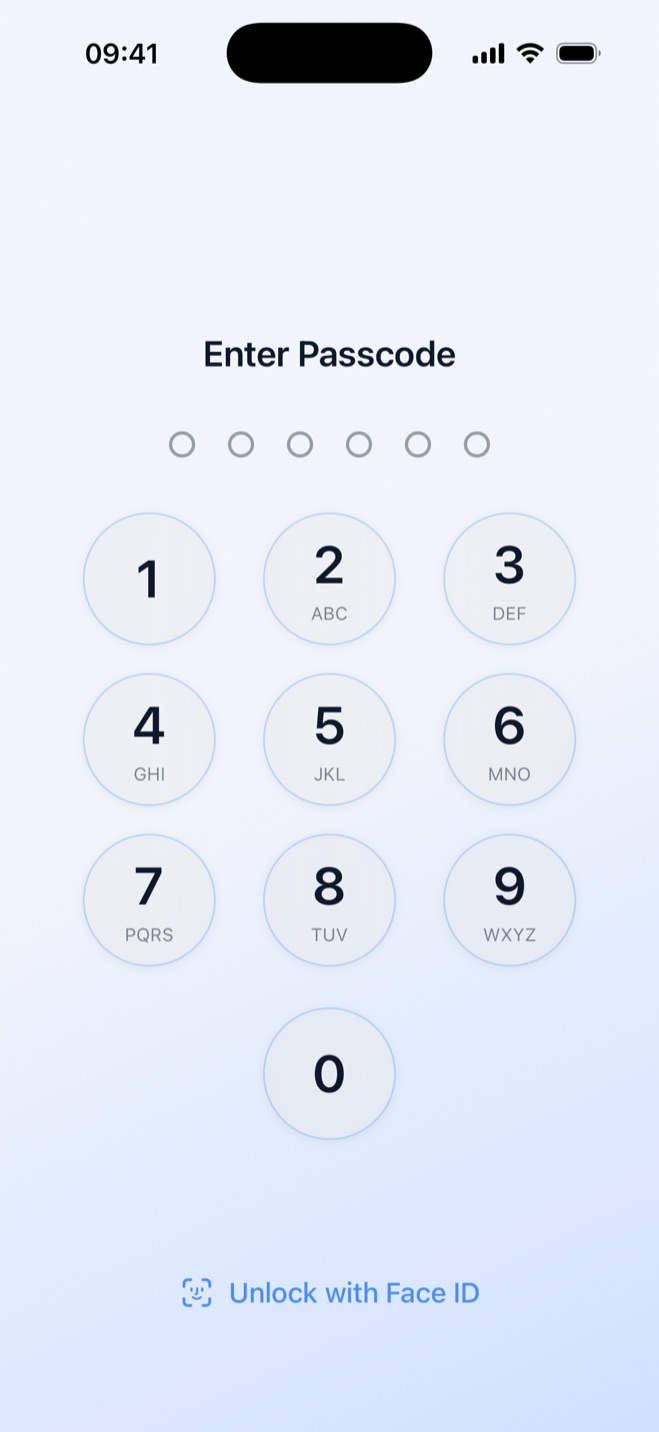
One such option is Secure Folder: Incogni Vault (iPhone-only, iOS 16.6+). It moves your photos, videos, documents, and notes out of the Photos app entirely and into a hidden gallery that only opens after you enter the vault PIN. Unlike the built-in Hidden album, this PIN is separate from your device passcode, so knowing your iPhone passcode won’t unlock the vault.
How a vault app works
- Download and set a PIN – After installing, you create a unique PIN (and optionally enable Face ID/Touch ID as a shortcut).
- Import private media – Use the app’s import tool to move photos and videos from your camera roll into the vault. Once imported, delete the originals from the Photos app to remove all traces from the main gallery.
- Organize in folders – Create folders inside the vault to keep things sorted; the contents remain invisible until you authenticate.
Extra protection features
- Decoy vault – Secure Folder: Incogni Vault offers a second, fake PIN that opens a decoy vault of harmless content. If someone demands you unlock the app, you can give the decoy PIN, and the real vault stays hidden with no visible switch or badge that could give it away.
- Intruder alerts – Each wrong PIN attempt silently captures a front-camera photo and timestamps it in an in-app log. No flash, no sound, and no on-screen warning—you’ll find out later who tried to snoop.
- Stealth mode – You can disguise the app’s icon and name on your home screen as one of nine ordinary-looking apps (calculator, weather, sudoku, etc.). The disguise applies throughout the system—in search, in the App Library—so the vault is effectively invisible. A quick-lock gesture closes the app instantly.
Privacy and data handling
Your vault content stays on your device and is never uploaded to any server. There’s no account to create, so the developer cannot see or recover what you store. The app does transmit anonymous product-analytics events (like “a feature was opened”) via Firebase Analytics, but those events contain nothing from inside the vault. And because there’s no cloud backup, you’re in control—but you also need to remember your PIN and keep your own backups of anything irreplaceable.
Pricing
Secure Folder: Incogni Vault is free to download, with a limited number of imports. Unlimited imports, intruder alerts, and widgets require Incogni Pro (available as a subscription or a one-time lifetime purchase). The core vault, decoy vault, and stealth icons work without Pro.
Which Method Should You Choose?
No matter which path you pick, the best protection starts with a strong device passcode and a clear understanding of where your photos are stored and who can unlock them.
- Casual hiding – If you just want to remove a few photos from the main camera roll and don’t mind that they’re protected by the same Face ID that unlocks your phone, the built-in Hidden album is quick and free.
- A few private images with a different password – The Notes app gives you a separate password, but it’s manual and still leaves the images inside Photos unless you delete them.
- Serious privacy with separate PIN, decoy, and alerts – A dedicated vault app like Secure Folder: Incogni Vault keeps your media off the camera roll entirely, behind its own PIN, with extra safety nets if someone tries to break in.
Common questions
Can you really password-protect photos on iPhone?
Not with a truly separate password using Apple's built-in tools alone. The Hidden album locks with the same Face ID or passcode as your phone, and the Notes trick works for a few images. For a PIN that's independent of your device passcode, you need a dedicated vault app.
Does the Hidden album use a separate password?
No. It locks with the same Face ID, Touch ID, or passcode that unlocks your phone, and it syncs through iCloud. Anyone who knows your device passcode can make the album visible in Settings and open it.
Can I lock photos inside the Notes app?
Yes. You can insert photos into a note and lock it with a Notes password that's separate from your device passcode. It works for a handful of images but is manual, and the photos stay in your camera roll unless you delete them after pasting.
How is a vault app different from the Hidden album?
A vault app like Secure Folder moves photos out of the Photos app entirely into a hidden gallery behind its own PIN, separate from your device passcode, so your iPhone passcode won't open it. It also adds a decoy vault and intruder alerts, and stores everything on-device with no account or cloud upload.
Is Secure Folder free?
It's free to download with a limited number of imports, and the core vault, decoy vault, and stealth icons work without paying. Unlimited imports, intruder alerts, and widgets require the Incogni Pro upgrade, available as a subscription or a one-time lifetime purchase.
Keep your photos yours.
Secure Folder is free on the App Store — everything stays on your iPhone.