Comparisons
Screen Time App Lock vs. a Photo Vault: Which Actually Hides Your Private Photos?
Mehmet Ali Kısacık · Developer of Secure Folder · July 22, 2026 · 9 min read
If you searched for a way to lock your Photos app with Screen Time or Face ID, you've probably run into two different iPhone features that get lumped together: the native "Lock or Hide an App" option Apple added in iOS 18, and the much older Screen Time controls that were never really designed for privacy in the first place. Neither one does what most people actually want, which is to keep some photos visible in the Photos app while hiding a handful of private ones. Here's what each feature really does, where it falls short, and what a dedicated photo vault does differently.
What iOS 18's "Lock or Hide an App" actually does
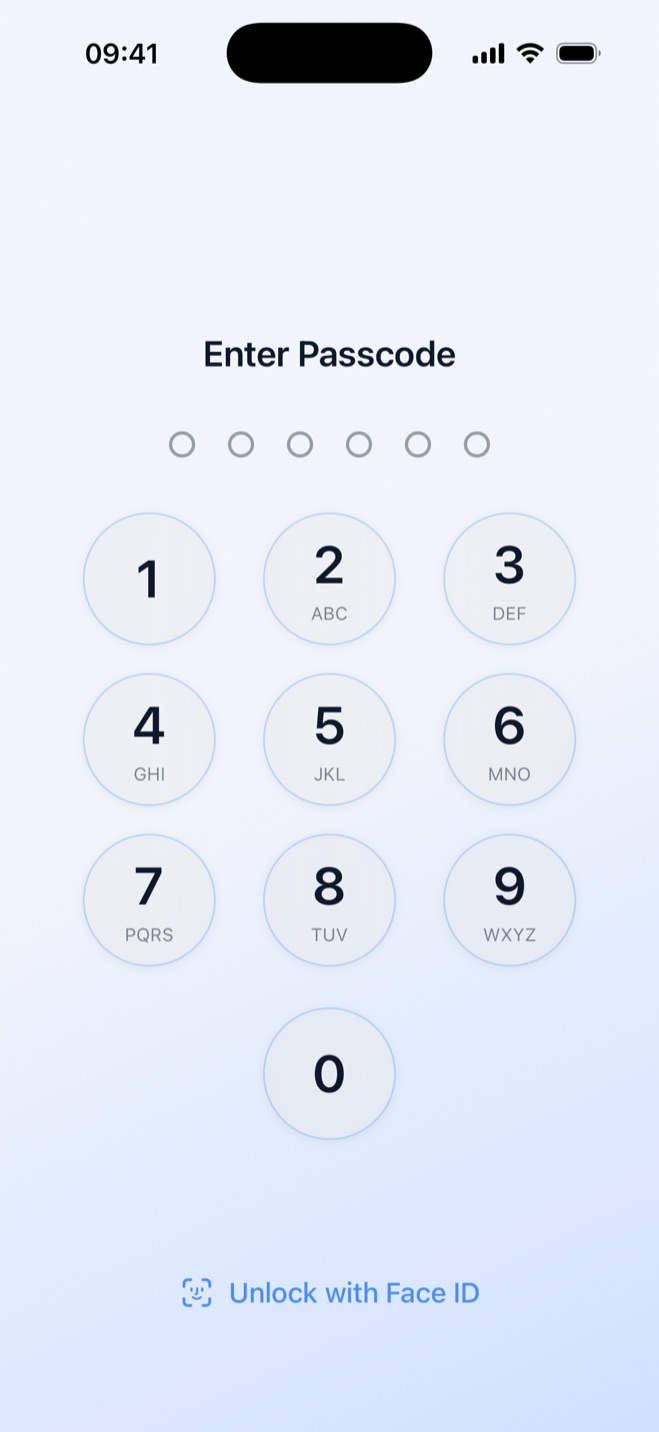
Since iOS 18, you can long-press any app icon on the Home Screen, open the Quick Actions menu, and choose "Require Face ID" (or Touch ID or your passcode) to lock it. Locking an app means it needs biometric or passcode authentication to open, and its content stops showing up in places like notification previews, Search, Siri Suggestions, CarPlay, and your call history, according to Apple's own support guide.
For an app you downloaded from the App Store, you can go a step further and choose "Hide and Require Face ID," which removes its icon from the Home Screen and App Library entirely and files it into a separate Hidden section, unlockable only with Face ID, Touch ID, or your passcode. The built-in Photos app is a special case: because it ships with iOS, it can be locked the same way, but it cannot be hidden. You can lock the entire Photos app behind Face ID, but its icon stays right where it is.
The catch: locking is all or nothing
This is the part that trips people up. Locking the Photos app protects everything inside it as one block. There is no setting that lets you leave your kids' school photos or your vacation shots visible while locking away a private folder. Either the whole Photos app requires Face ID to open, or none of it does. If your goal is "keep most of my library open but hide a few sensitive photos," the native lock feature simply isn't built for that job.
What "hidden" still doesn't hide
Apple is upfront that hiding an app does not erase every trace of it. Per Apple's support documentation, a hidden app's name can still appear in Screen Time, in Battery Usage by App under Settings, and in your App Store purchase history. If your iPhone is in a Family Sharing group, a parent or guardian can still see that the app was downloaded, how much it's used, and can restrict access to it through Screen Time, regardless of whether you've hidden it on your own device. None of this is a bug: it's how Apple designed the feature, and it's worth knowing before you rely on it to keep an app invisible from someone who manages your Family Sharing settings.
It's also worth knowing that locking or hiding an app is a per-device setting. It doesn't sync through iCloud, so locking Photos on your iPhone has no effect on your iPad or Mac. And if Stolen Device Protection is turned on, locked apps require Face ID or Touch ID specifically (no passcode fallback) when your iPhone is away from places it recognizes as familiar, according to Apple's Stolen Device Protection guide.
Don't confuse this with the Hidden album
There's a separate, older Apple feature that adds to the confusion: the Photos app's own Hidden album, tucked under Utilities. It lets you select individual photos and videos and move them into a Hidden album, which you can protect with a Face ID or Touch ID toggle in Settings under Apps > Photos. Unlike locking the whole Photos app, the Hidden album does let you hide specific photos while leaving the rest of your library visible, which is closer to what most people are actually looking for.
The tradeoff is that Hidden album content syncs through iCloud Photos across your other Apple devices when iCloud Photos is turned on, per Apple's support documentation. So a photo you hide on your iPhone is still hidden (and still protected by that device's own Face ID check) on your iPad or Mac, but it's living in the same iCloud photo library as everything else. We've covered that feature and its limits in more depth in our comparison of iOS's Hidden album.
The Screen Time "trick" people mention isn't really app locking
Before iOS 18, some people worked around the lack of a native app lock by setting a one-minute Screen Time limit on a specific app and enabling "Block at End of Limit," which forces a Screen Time passcode prompt the next time the app opens. It's a real workaround, but it was never designed as a privacy feature: it uses a shared Screen Time passcode rather than Face ID, it can be reset by anyone who knows that passcode, and it doesn't hide anything from Battery Usage, purchase history, or Family Sharing visibility any better than the native lock does. If you're on iOS 18 or later, the built-in "Require Face ID" option is the more direct and better-supported path to the same goal.
What a dedicated photo vault does that Apple's lock doesn't
Locking the Photos app protects the app; it doesn't let you separate "private" from "everything else" within your library. That's the specific gap a photo vault app is built to fill. Secure Folder: Incogni Vault is a private photo vault for iPhone that works differently from Apple's app-level lock: instead of locking the Photos app as a whole, it moves the photos, videos, documents, and notes you choose out of the Photos app entirely and into a separate hidden gallery, locked behind its own PIN or Face ID, distinct from your phone's passcode.
Because it's a separate space rather than a lock on top of Photos, Secure Folder can offer things the native lock doesn't attempt: a decoy vault that opens a second, harmless-looking vault with a different PIN, with no visible switch or setting that reveals the real vault exists; a stealth mode that disguises the app's home-screen icon and name as one of nine ordinary-looking apps such as a calculator or weather app; and, with Incogni Pro, intruder alerts that quietly capture a front-camera photo and timestamp every wrong PIN attempt into an in-vault log. The core vault, decoy vault, and stealth icons work in the free version; unlimited imports, intruder alerts, and widgets require Incogni Pro, available as a subscription or one-time purchase.
On the privacy side, content you place in the vault stays on the device and isn't uploaded anywhere: there's no account and no content server, so the developer cannot see or recover what's inside. The app does send anonymous product-analytics events (for example, that a feature was opened) using Firebase Analytics, but those events never include anything from inside the vault. The flip side of on-device-only storage is that there's no cloud backup: if the device is lost, vault content isn't recoverable by the developer, so it's worth keeping your own backup of anything irreplaceable and remembering your own PIN, since there's no server-side reset.
Which one should you actually use?
If you just want your whole Photos app to require Face ID before anyone (including your kids) can casually swipe through it, Apple's native "Require Face ID" lock is quick, built in, and free. If you want to hide a handful of specific photos while keeping the rest of your library open, and you're comfortable with those photos still living in your iCloud Photos library, the Hidden album is the closer fit. If you want private content pulled out of Photos altogether, protected by its own PIN, with a decoy option and a disguised icon on top, a dedicated vault app is doing a genuinely different job than either Apple feature.
Risks and limits worth knowing either way
None of these tools make a phone unbreakable. Screen Time and app-lock passcodes can be reset by anyone who knows your Apple ID credentials or has physical access before you've set protections up. Camera and recording laws for intruder-style alerts vary by country and use case, so any app that captures a photo on a failed unlock attempt should be used within your local laws. And whichever method you pick, the biggest single point of failure is usually a passcode or PIN shared with someone else, not a gap in the software itself.
Common questions
Can I lock just some photos in the Photos app without a vault app?
Not with Apple's built-in tools. iOS 18's "Require Face ID" lock protects the entire Photos app as one block, and the Hidden album is all-or-nothing too, so there's no native middle ground where some photos stay visible while others sit behind their own lock. A dedicated vault app is what fills that gap.
Does locking the Photos app hide it from Screen Time reports?
No. Per Apple's own support documentation, a locked or hidden app's name can still appear in Screen Time, in Battery Usage by App, and in your App Store purchase history, and a parent managing Family Sharing can still see that it was downloaded and how much it's used.
Does the old Screen Time app-lock trick still work in iOS 18?
Setting a one-minute limit with "Block at End of Limit" still forces a Screen Time passcode prompt, but it was never built as a privacy feature. It relies on a shared Screen Time passcode instead of Face ID, so the native "Require Face ID" option added in iOS 18 is the more direct, better-supported way to lock an app now.
Does locking Photos on my iPhone also lock it on my iPad or Mac?
No. Locking or hiding an app is a per-device setting that doesn't sync through iCloud, so you'd need to lock the Photos app separately on each Apple device.
Is a photo vault app more secure than Apple's Face ID lock?
They guard against different things. Apple's lock is quick, free, and protects the whole Photos app equally. Secure Folder: Incogni Vault instead moves chosen photos out of the Photos app into a separate PIN-locked gallery, and adds a decoy vault, a disguised icon, and (with Incogni Pro) a log of failed unlock attempts, none of which Apple's built-in lock offers.
Keep your photos yours.
Secure Folder is free on the App Store — everything stays on your iPhone.