Guides
How to make a photo album private on iPhone: Hidden album or separate vault
Mehmet Ali Kısacık · Developer of Secure Folder · October 4, 2026 · 3 min read
How to make a photo album private on iPhone comes down to the kind of lock you want to use. Photos can move the album's pictures into the locked Hidden album; Secure Folder: Privacy Vault can put those photos in a separate vault folder protected by its own 6-digit PIN.
Hide private photos in a PIN-protected vault.
Secure Folder is free to download on the App Store, and your photos and videos stay on your iPhone.
In this article
Can you lock one album in Photos?
A regular album in Photos is for organizing pictures, not for giving that album its own lock. Apple's private area is the Hidden album, so hiding pictures from a chosen album moves those items into Hidden instead of turning the original album into a locked album.1,2
Hide the album's photos in the Hidden album
- 1.
- 2.
Choose the private photos
Select the photos and videos from that album that you want to hide.3
- 3.
- 4.
If someone knows your iPhone passcode
The Hidden album uses the iPhone's own authentication, including its passcode. If the person you are keeping the album private from already knows that passcode, a separate vault gives the album a different lock.3
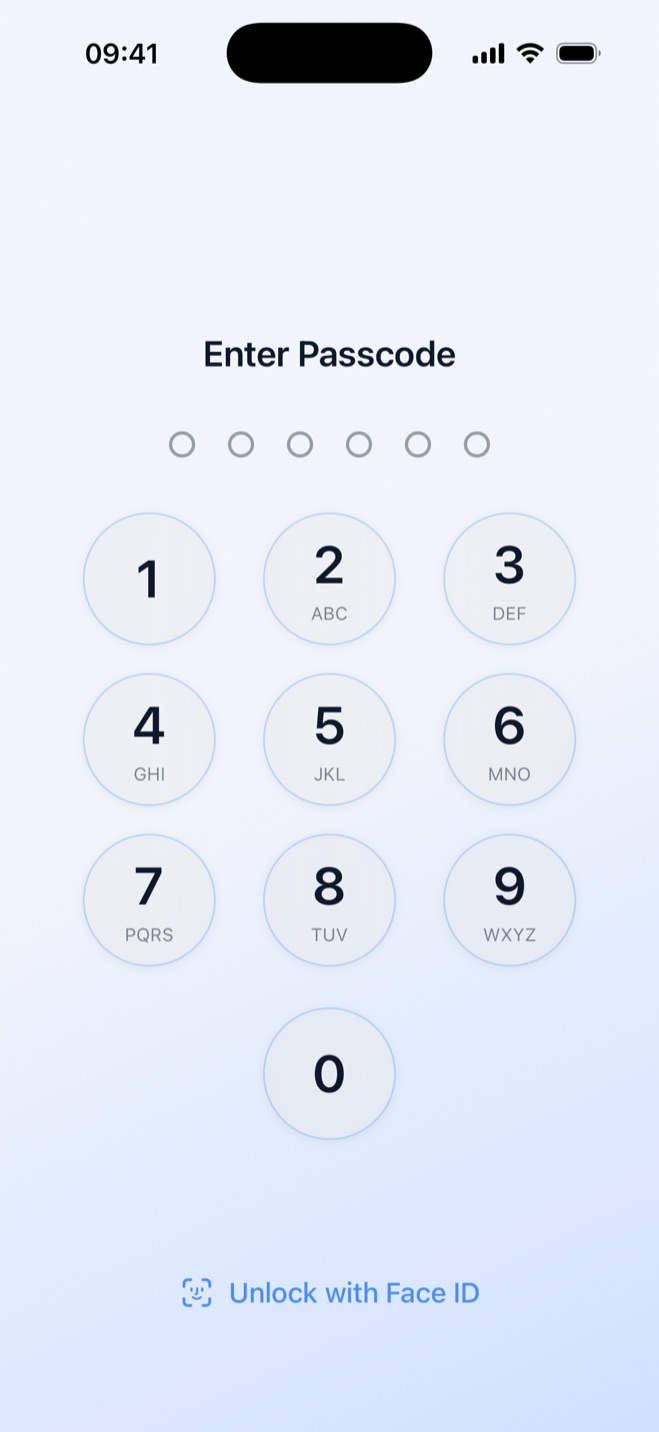
Secure Folder has its own 6-digit PIN, set when the vault is first opened and separate from the iPhone passcode. The iPhone passcode does not open the vault, and imported photos appear in the vault's own hidden gallery instead of relying on the Photos Hidden album.
Keep the photos as a separate album inside the vault
Inside the vault, those photos can stay together in their own folder, which works like a private album. Each folder can have its own colour and cover, contain sections, and sort items by date added, original date, name, or size.
That makes it practical to keep several private albums separate instead of putting every hidden picture into one collection. The gallery shows its own thumbnails inside the vault, and every folder is protected by the vault's 6-digit PIN.
What happens to the originals in Photos
The two methods treat the originals differently. Apple's Hide command keeps the pictures inside Photos in the Hidden album, while a vault import creates a copy inside the vault and lets you decide whether the originals stay in Photos.1
| Method | Still in your Photos library or albums? | Where the private copy lives | What opens the private copy |
|---|---|---|---|
| Hide in Photos | No, except inside the Hidden album | Hidden album in Photos | Face ID, Touch ID, or iPhone passcode |
| Import to the vault and keep originals | Yes | Vault folder, with the original still in Photos | Vault's 6-digit PIN |
| Import to the vault and remove originals | No, once the originals are removed | Vault folder | Vault's 6-digit PIN |
When you first import photos, you can choose whether to keep the originals in Photos or remove them after import. You can change that choice later, remove originals when you are ready, or restore vault items to Photos.
Sources
- 1.Apple Support, “Hide photos on your iPhone, iPad, Mac, or Apple Vision Pro with the Hidden album,” support.apple.com
- 2.Apple, “Create and work with photo albums on iPhone,” support.apple.com
- 3.Apple, “Delete or hide photos and videos on iPhone,” support.apple.com