Guides
How to Keep Your iPhone Photos Private When Sharing Your Phone
Mehmet Ali Kısacık · Developer of Secure Folder · July 26, 2026 · 5 min read
Updated October 4, 2026
To keep photos private when lending an iPhone to a friend, child, or coworker, Guided Access can keep them in one app, the Hidden album can remove selected photos from the main Photos views, and a separate vault can keep selected photos outside Photos behind its own PIN.
In this article
Ways to keep photos private when lending your iPhone
If the person only needs one app, restrict the phone to that app. If they need normal use of the phone, hiding selected photos may be enough. If they know your iPhone passcode or you want the private set kept outside Photos, a separate vault PIN gives those photos their own lock.1,2,3
| Method | Best when | What protects your photos | What the borrower can still reach | How protected content is opened |
|---|---|---|---|---|
| Guided Access | They only need one app | The iPhone stays in the app you selected for the session | The selected app and the controls you leave available | End the session with the Guided Access passcode or configured Face ID or Touch ID |
| Hidden album | They need normal use of the phone | Selected photos are removed from the main Photos views and placed in Hidden | Other apps and photos that are not hidden | Hidden uses the iPhone's device authentication |
| Secure Folder: Privacy Vault | They know your iPhone passcode or the photos should be outside Photos | Imported photos sit in a separate vault behind its own 6-digit PIN | The rest of the iPhone you choose to hand over | The vault opens with its own PIN or enabled biometric unlock |
Use Guided Access when they only need one app
Guided Access works well when someone only needs to watch a video, use a game, read something, or work inside one specific app. Apple designed it to temporarily keep iPhone in a single app, so you can start the session before handing over the phone.1
Set up Guided Access before handing over your iPhone
- 1.
Turn on Guided Access
Open Settings, go to Accessibility, tap Guided Access, and turn it on.1
- 2.
Set the exit authentication
Open Passcode Settings inside Guided Access and set a Guided Access passcode. You can also enable Face ID or Touch ID for ending sessions.1
- 3.
Open the app they need
Go to the app you want to leave on screen, then triple-click the side button. On an older iPhone with a Home button, triple-click the Home button instead.4
- 4.
Use the Hidden album when they need normal access to the phone
If the borrower needs to move around the iPhone normally, you can hide selected photos and videos before handing it over. In Photos, use Hide on the items you want to remove from the main views. Apple says hidden items move to the Hidden album and no longer appear in the Library, other albums, or the Photos widget. For the longer setup, follow this iPhone photo-hiding walkthrough.2
The Hidden album is still part of Apple's Photos app. Opening it uses iPhone device authentication, including Face ID, Touch ID, or the passcode, rather than a separate password created just for that album. That distinction matters if the person borrowing your phone already knows the phone passcode.2,3
iOS can also lock an individual app so opening it requires Face ID, Touch ID, or the device passcode. If the concern is a specific app rather than the Photos library, compare app locking with a photo vault.5
Use a separate vault when the borrower knows your iPhone passcode
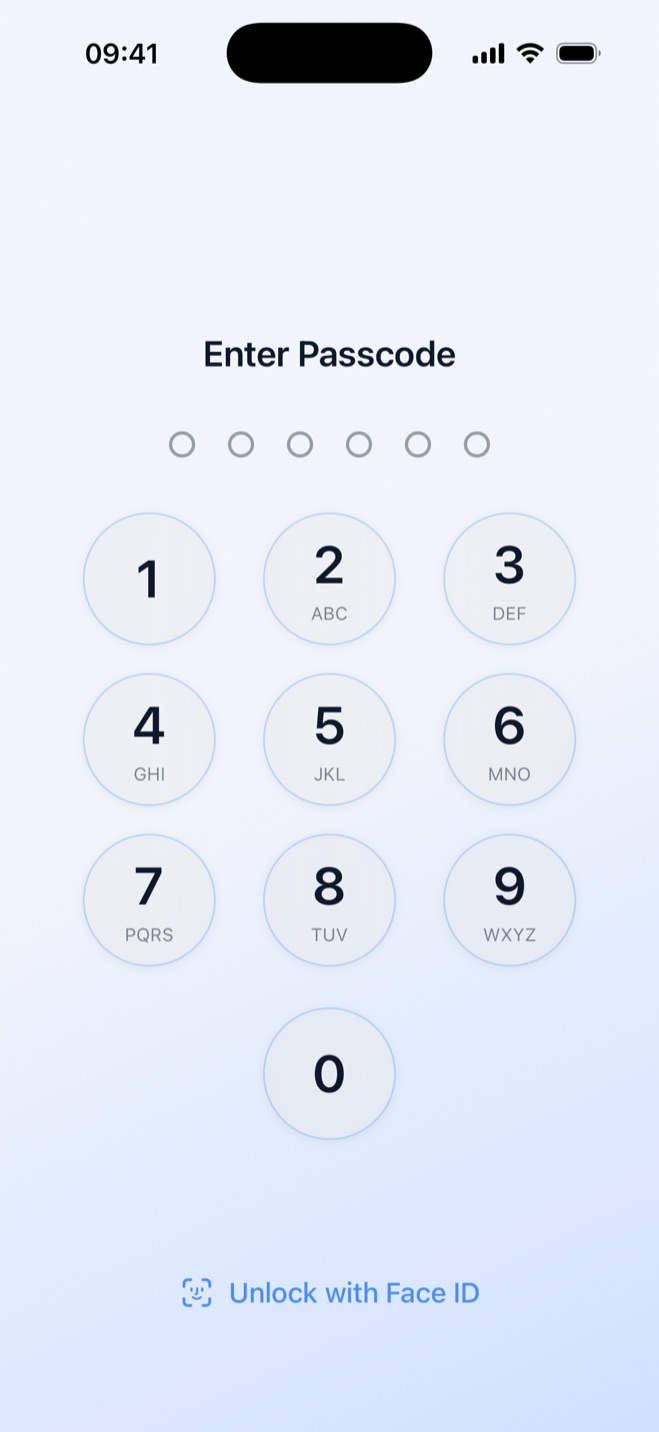
Secure Folder keeps imported photos in a separate gallery behind its own 6-digit PIN, which is separate from the iPhone passcode. For a friend, child, partner, or coworker who already knows the phone passcode, that gives the private photo collection a different lock from the one they use to enter the iPhone.
Prepare the vault before lending the phone
- 1.
Set the vault PIN
At first launch, create the vault's 6-digit PIN. This is the code used to open the private gallery, separate from the iPhone passcode.
- 2.
Import the private photos
Import the photos you want in the vault. After the import, the app offers to remove the originals from Photos, or you can keep them there.
- 3.
Choose what happens to the originals
On the first photo import, the app asks whether originals should be removed after import. That choice becomes the Auto-Delete Originals setting, and iOS confirms each deletion. You can also remove originals later from inside the vault.
If someone is likely to notice the vault app and ask to see it, stealth mode and a decoy vault are designed for that hand-over moment. Secure Folder can swap its Home Screen icon for an ordinary-looking one, while a different 6-digit PIN opens a separate decoy vault filled with the harmless content you choose.
Hide private photos in a PIN-protected vault.
Secure Folder is free to download on the App Store, and your photos and videos stay on your iPhone.
Sources
- 1.Apple, “Lock iPhone to one app with Guided Access,” support.apple.com
- 2.Apple Support, “Hide photos on your iPhone, iPad, Mac, or Apple Vision Pro with the Hidden album,” support.apple.com
- 3.Apple, “Hide photos and videos,” support.apple.com
- 4.Apple Support, “Use Guided Access on iPhone or iPad,” support.apple.com
- 5.Apple, “Lock or hide an app on iPhone,” support.apple.com