iPhone app to hide pictures: move the ones you pick out of Photos
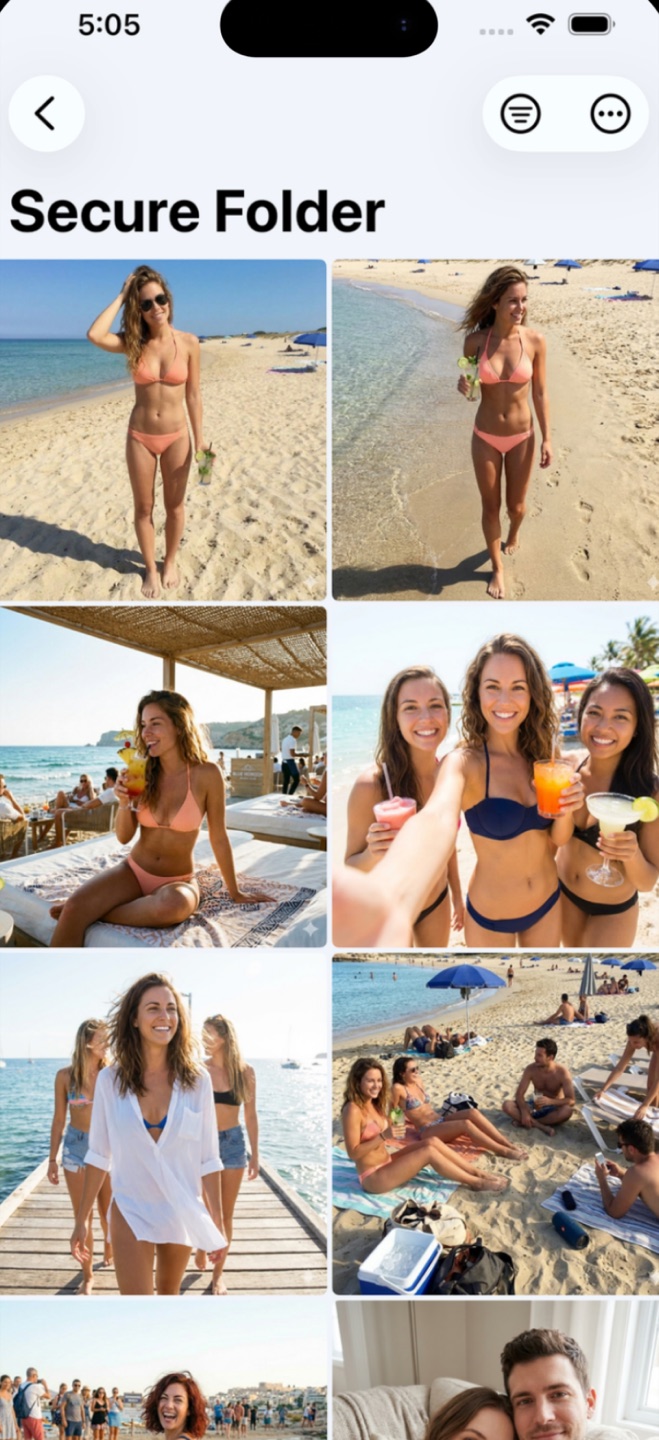
If you're looking for an iPhone app to hide pictures, you probably want a few of them gone from Photos and kept behind a separate lock, with everything else left alone. That's what Secure Folder: Privacy Vault does. You choose the pictures, they go into the app's hidden gallery, and that gallery opens only after you unlock the vault with its 6-digit PIN or Face ID.
Where the hidden pictures go, and who can open them
Pictures you import into Secure Folder are kept in a gallery inside the app, and even the thumbnails are stored in the vault, so nothing from that gallery shows up in Photos. You won't find it among your albums or in the Hidden album, and anyone scrolling through Photos sees only what you left there.
The vault opens with its own 6-digit PIN, set the first time you launch the app and separate from your iPhone passcode. So when you lend your phone, or when a partner or family member uses the same iPhone, someone who knows the passcode still needs the vault's PIN to see the gallery. Face ID or Touch ID can open the vault instead of the PIN once you switch it on in the Security tab, and the PIN itself can be changed there under Change PIN.
The pictures themselves stay on your iPhone. Secure Folder is a local-only vault, so nothing is uploaded and iCloud never comes into it. You never have to create an account or enter an email address.
How to hide only the pictures you choose
You don't have to hide everything. Each import takes only the pictures you select, so the rest of your camera roll stays as it is.
Step by step
- 1.
Unlock the vault
Open Secure Folder and enter your vault PIN, or use Face ID or Touch ID if you've switched it on.
- 2.
Import from Photos
Start an import from Photos and select only the pictures you want to hide.
- 3.
Answer the originals prompt
The first time you import photos, the app asks: "Remove originals after import?" Choose to remove them if you want the pictures out of your camera roll. Your answer is saved as the Auto-Delete Originals setting, which you can change later in the app's Settings.
- 4.
Confirm the deletion
If you chose to remove the originals, iOS asks you to confirm before each deletion. Once you confirm, the picture is out of your camera roll.
A removed original goes to Recently Deleted in Photos, where it's kept for 30 days before being permanently removed from your iPhone, iCloud and the other devices on your Apple Account. If you want it gone sooner, open Recently Deleted and delete it permanently there.1
The app can look like a calculator
If a child or a partner taps the icon, Secure Folder can open to a calculator rather than to a PIN pad. It's a working calculator, so whoever taps it can go ahead and use it. In the Security tab you can also give the app an ordinary-looking Home Screen icon, such as a calculator, and that icon is what shows in the App Library and in search too.
To reach your pictures, tap the gear at the top right of the calculator. That opens the real PIN pad, so you never type your PIN into the calculator itself.
Try it on your own photos.
Free to download. Set your PIN in under a minute.
Sources
- 1.Apple Support, “Delete or hide photos and videos on iPhone,” support.apple.com