Guides
iPhone Photo Security Checklist: How to Stop Your iCloud Photos From Being Hacked
Mehmet Ali Kısacık · Developer of Secure Folder · July 21, 2026 · 5 min read
Updated September 29, 2026
Can someone hack your iCloud Photos? Yes, if they get access to your Apple Account. The practical defense is to secure the account, avoid handing over sign-in codes, and keep selected private photos outside iCloud Photos.
In this article
How someone gets into iCloud Photos
One example is the 2014 theft of private celebrity photos. Apple said its investigation found targeted attacks on usernames, passwords, and security questions, and no breach of iCloud or Find My iPhone.4
The main paths to close are:
- A reused or exposed Apple Account password can give an attacker the first credential they need, which is why Apple recommends a strong, unique password.
- A phishing message can send you to a fake sign-in page and try to collect your password or verification code.
- An old or unfamiliar signed-in device can keep access to iCloud and other Apple services until you remove it from your account.1,3,5
If your concern is someone who has your iPhone and knows its passcode, Stolen Device Protection is a separate layer. This checklist focuses on the Apple Account route into iCloud Photos.
Lock down the Apple Account sign-in
Work through these settings in order. Each one closes a different part of the sign-in path, so the combination matters more than any single step.
Apple Account security checklist
- 1.
Use a strong, unique password
Change a reused password before doing anything else. Apple recommends a strong, unique password if you think your account may have been compromised, because a password exposed elsewhere should not also open your Apple Account.1
- 2.
Turn on two-factor authentication
On iPhone, open Settings, tap your name, then Sign-In & Security. Two-factor authentication adds a six-digit verification code when your Apple Account is used to sign in on a new device or on the web.2
- 3.
Decide whether to set up a recovery key
Apple's recovery key is a 28-character code that you can use with a trusted phone number and an Apple device to help regain access. Turning it on replaces Apple's standard account recovery process.
Store the key somewhere you can still reach if you lose account access. Apple specifically warns against keeping it in Passwords, iCloud Photos, Notes, or iCloud Drive.6
- 4.
Review every signed-in device
In Settings, tap your name and review the devices listed under your Apple Account. Remove anything you no longer use or do not recognize; Apple says a removed device loses access to iCloud and no longer displays two-factor verification codes.5
Add Advanced Data Protection for iCloud
Advanced Data Protection is optional. Apple says it extends end-to-end encryption to more iCloud categories, including Photos, and keeps that data protected even in the event of a cloud data breach.7
Before you can turn it on, Apple requires an alternative recovery method such as a recovery contact or recovery key. Child accounts and Managed Apple Accounts are not eligible, and iCloud.com data access is off by default unless a trusted device approves temporary web access.7
This changes how your data is protected in iCloud, but it does not replace the sign-in steps above. If you want the fuller privacy distinction, see what Apple can access in iCloud Photos.
Do not give a phishing page your second factor
Two-factor authentication protects a sign-in only while the second factor stays with you. If a scammer gets both your password and the verification code, they have the two credentials the sign-in flow asks for.2,3
Apple warns that phishing messages may send you to a fake Apple sign-in page, ask for a verification code, or tell you to disable security features. Check the real destination before opening a sign-in link, and do not give anyone your Apple Account password, device passcode, or verification code.3
If you think you entered credentials into a fake page, change your Apple Account password and review the signed-in device list. An unfamiliar device or account change is a concrete sign that the attempt may have succeeded.1,5
Keep selected private photos outside iCloud Photos
Account hardening protects the library that stays in iCloud Photos. For a small set of images you do not want tied to that account at all, move those items out of Photos instead of relying on another Photos view.
Apple's Hidden album is still part of Photos. When iCloud Photos is in use, hidden photos sync to your other devices too, so the Hidden album and a separate vault solve different privacy jobs.8
Secure Folder: Privacy Vault is a local-only photo vault for iPhone. It uses no iCloud, uploads nothing, and stores imported photos, videos, and files on the iPhone in the app's protected storage.
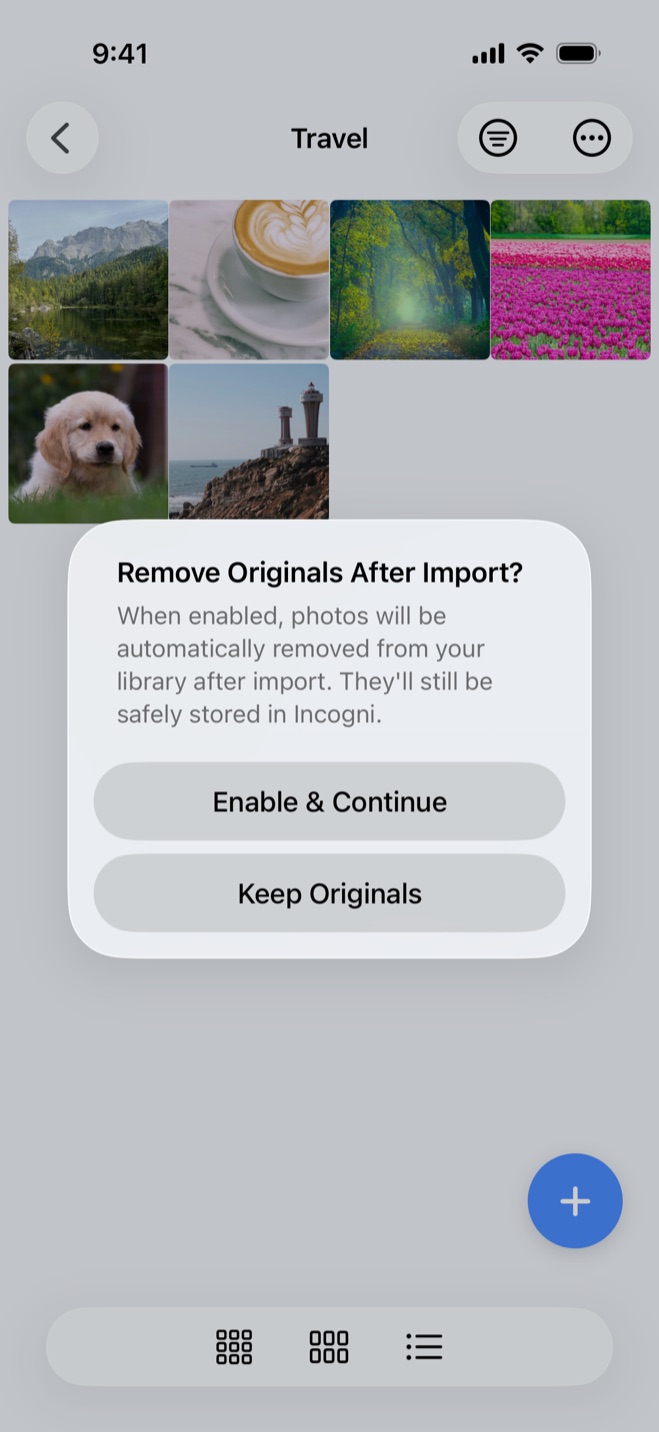
When you import a photo, Secure Folder puts a copy in the vault. On the first import, the app asks whether to remove originals after import; that choice becomes the Auto-Delete Originals setting, and iOS confirms each deletion. You can also remove originals later with Delete Originals (Free Up Space). Once the original is deleted from Photos, it is removed from the iCloud Photos library as that deletion syncs.9
For more detail on the local vault itself, see how Secure Folder keeps selected photos apart from Photos.
Hide private photos in a PIN-protected vault.
Secure Folder is free to download on the App Store, and your photos and videos stay on your iPhone.
Sources
- 1.Apple Support, “If you think your Apple Account has been compromised,” support.apple.com
- 2.Apple Support, “Two-factor authentication for Apple Account,” support.apple.com
- 3.Apple Support, “Recognize and avoid social engineering schemes including phishing messages, phony support calls, and other scams,” support.apple.com
- 4.Apple, “Apple Media Advisory,” apple.com
- 5.Apple Support, “Review devices signed in to your Apple Account,” support.apple.com
- 6.Apple Support, “Set up a recovery key for your Apple Account,” support.apple.com
- 7.Apple Support, “How to turn on Advanced Data Protection for iCloud,” support.apple.com
- 8.Apple Support, “Hide photos on your iPhone, iPad, Mac, or Apple Vision Pro with the Hidden album,” support.apple.com
- 9.Apple Support, “Delete photos and videos from iCloud Photos,” support.apple.com