Guides
Hidden Photos in Shared Library: Can Family Members See Them?
Mehmet Ali Kısacık · Developer of Secure Folder · July 31, 2026 · 4 min read
Updated October 3, 2026
Hidden photos in an iCloud Shared Photo Library can still be opened by a family member who participates in that library. Apple says a shared photo you hide moves to the Hidden album for all participants, where they can view it or unhide it. Secure Folder: Privacy Vault can keep a chosen photo out of the Shared Library by holding it in its own vault on the iPhone.
Hide private photos in a PIN-protected vault.
Secure Folder is free to download on the App Store, and your photos and videos stay on your iPhone.
In this article
What Hide does inside a Shared Library
Photos gives you a Personal Library and, if you join one, a Shared Library. When you contribute a photo, it moves from your Personal Library into the Shared Library, where the other participants can access the shared content.2,3
Using Hide leaves that photo in the Shared Library and moves it to the Hidden album for all participants, according to Apple. Hide changes where the photo appears inside the shared library; it does not change who participates in that library. The Hidden album itself uses device authentication, but that lock on your iPhone does not change whether the photo remains shared with the other participants.1,3,4
If you are sorting out whether sharing iCloud storage with family exposes photos, that is a different question. Apple says Family Sharing is not required to set up a Shared Photo Library. For separate questions about Hidden album syncing, use that dedicated topic.2,4
Move a photo you added back to your Personal Library
For a photo you contributed yourself, Photos has a direct option: move it from the Shared Library back to your Personal Library. Apple currently labels that action Move to Personal Library.3
Moving your own contribution back removes it from the shared collection while keeping it in Photos.3
Keep a chosen photo out of Photos with a vault
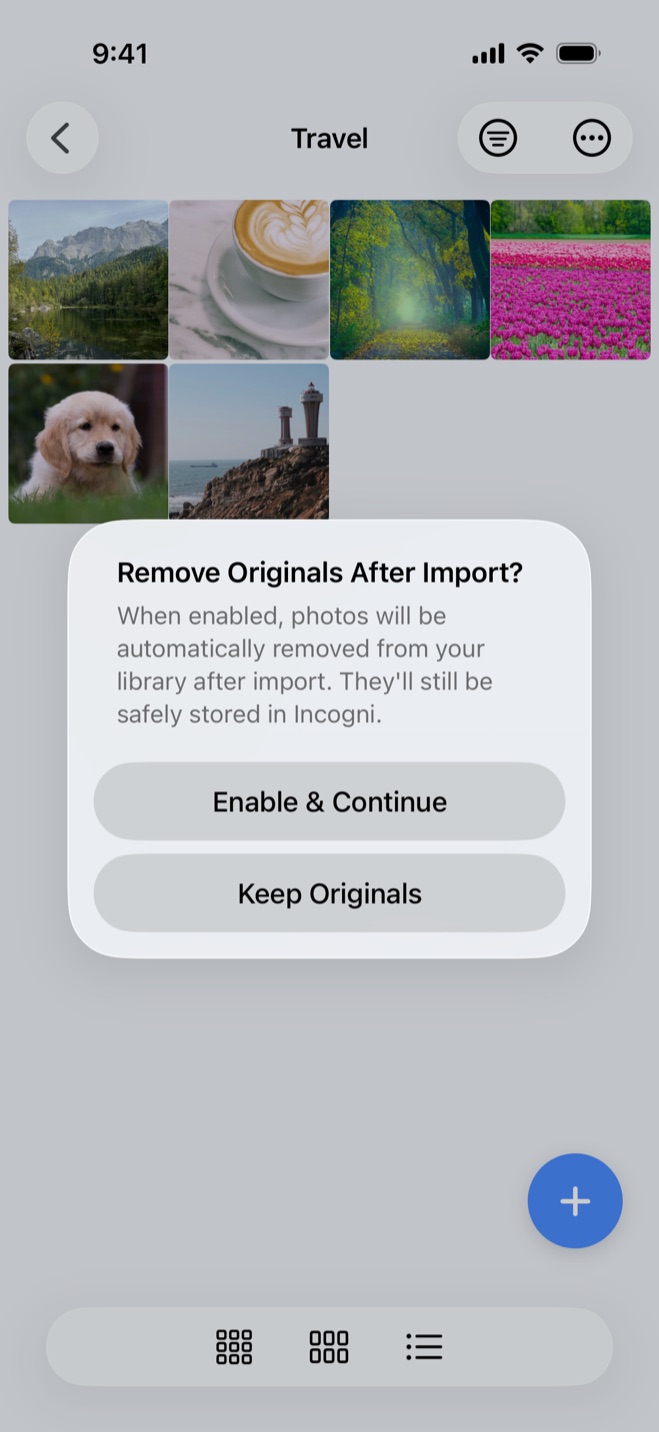
Secure Folder: Privacy Vault gives you a separate place for photos you do not want left in Photos. Importing creates a copy inside the vault, and after the import the app offers to remove the originals from Photos or keep them there.
Move a shared photo into the vault
- 1.
Import the photo
Choose the photo in Photos and import it into the vault. After the import, the app lets you choose whether to remove the original from Photos or keep it there.
- 2.
Choose whether to remove originals
On the first photo import, the app asks whether to remove originals after import. Your choice becomes the Auto-Delete Originals setting, which you can change later in Settings.
- 3.
Confirm the deletion in iOS
iOS asks you to confirm each deletion. Once the original is deleted from the Shared Library, it no longer appears there for the other participants.5
If you keep the original at first, Delete Originals (Free Up Space) removes it later. Restore to Photos puts a vaulted item back into Photos when you want it there again.
The vault has its own 6-digit PIN, separate from the iPhone passcode. Face ID or Touch ID can also open the vault when enabled.
Why vault photos stay out of the family's iCloud setup
Secure Folder is local-only. Nothing in the vault is uploaded. The vault uses no iCloud and needs no account or email. Photos, videos, and files stay on the iPhone in the app's protected storage.
That keeps vaulted photos outside the family's Shared Library and outside the Hidden albums tied to that shared collection. If you later move to a new iPhone, export the items with the share sheet and import them on the new device.
Use Personal Library when you only need one of your own contributions removed from the shared collection. Use a separate vault when you want the chosen photo outside Photos and the family's shared iCloud photo setup entirely.
Sources
- 1.Apple, “Hide your photos and videos on iCloud.com,” support.apple.com
- 2.Apple, “Set up or join an iCloud Shared Photo Library on iPhone,” support.apple.com
- 3.Apple, “Use iCloud Shared Photo Library on iPhone,” support.apple.com
- 4.Apple, “Hide photos on your iPhone, iPad, Mac, or Apple Vision Pro with the Hidden album,” support.apple.com
- 5.Apple, “Delete photos on your iPhone or iPad,” support.apple.com