Guides
iPhone Privacy Tips for Parents: How to Protect Your Kids' Photos from Being Shared
Mehmet Ali Kısacık · Developer of Secure Folder · July 23, 2026 · 4 min read
Updated October 4, 2026
Family photo privacy on iPhone starts with Screen Time and Content & Privacy Restrictions, Communication Safety, location controls, app photo access, and careful Shared Library choices. For family photos that should stay private on the phone, a separate vault with its own PIN gives them a different place to live.
In this article
Set up Family Sharing first
If you want to manage your child's parental controls from your own iPhone or iPad, make sure the child's Apple Account is in your Family Sharing group. Apple lets a family organizer or parent or guardian manage Screen Time settings, approve certain interactions, and adjust Content & Privacy Restrictions from their own device.1
Do this before working through the photo settings below. It keeps the setup in one place and makes it easier to revisit the controls as your child starts using new apps.1
Use Screen Time to hold the privacy settings in place
Screen Time is the main place Apple gives parents to manage a child's app, content, communication, and privacy settings. Content & Privacy Restrictions is the part that matters most for the photo setup that follows.1
Set the child's privacy restrictions
- 1.
Open your child's Screen Time controls
On your own iPhone or iPad, open the Screen Time controls for the child in your Family Sharing group.1
- 2.
Open Content & Privacy Restrictions
Review the controls for apps, content, communication, and privacy. These are the settings you will return to when you want to change what the child's device can access.1
- 3.
Turn on Communication Safety
Communication Safety is designed for moments when a child receives or attempts to send a photo or video that may contain sensitive content. In supported apps and features, it can warn the child, blur detected content, and provide resources before they continue.2
Open the child's Screen Time controls and select Communication Safety. For the related iPhone setting outside this child-focused setup, see how Sensitive Content Warning works.2
Check location data and app photo access
Two quieter settings can expose more than the picture itself: location metadata saved with a photo, and photo-library access already granted to other apps. Both are worth checking before your child begins sharing regularly.3,4
Review these two privacy settings
- Location metadata: When Camera location access is enabled, a photo or video can include coordinates that reveal where it was taken. You can remove that location before sharing or stop Camera from collecting it. See the location-removal steps.
- App photo access: Review which third-party apps have requested access to Photos, then turn access off where it is not needed. See how to limit photo-library access by app.3,4
Decide what belongs in the Shared Photo Library
A child's privacy settings do not decide what adults place in an iCloud Shared Photo Library. When you contribute a photo or video, Apple moves it from your Personal Library into the Shared Library, and every participant can add, edit, or delete shared content.5
Apple also lets you choose automatic sharing from the camera, including a Share When At Home option. Review automatic sharing before you rely on the Shared Library, choose participants with care, and keep photos that should remain private out of it. If your family also shares iCloud services, check how Family Sharing affects photo privacy.5
Use a separate vault for photos that should stay private
Apple's Hidden album removes hidden items from the main Photos views. In iOS 16 and later, the Hidden album is locked by default and requires authentication to open. If you use iCloud Photos, photos hidden on one device are hidden on your other devices too.6
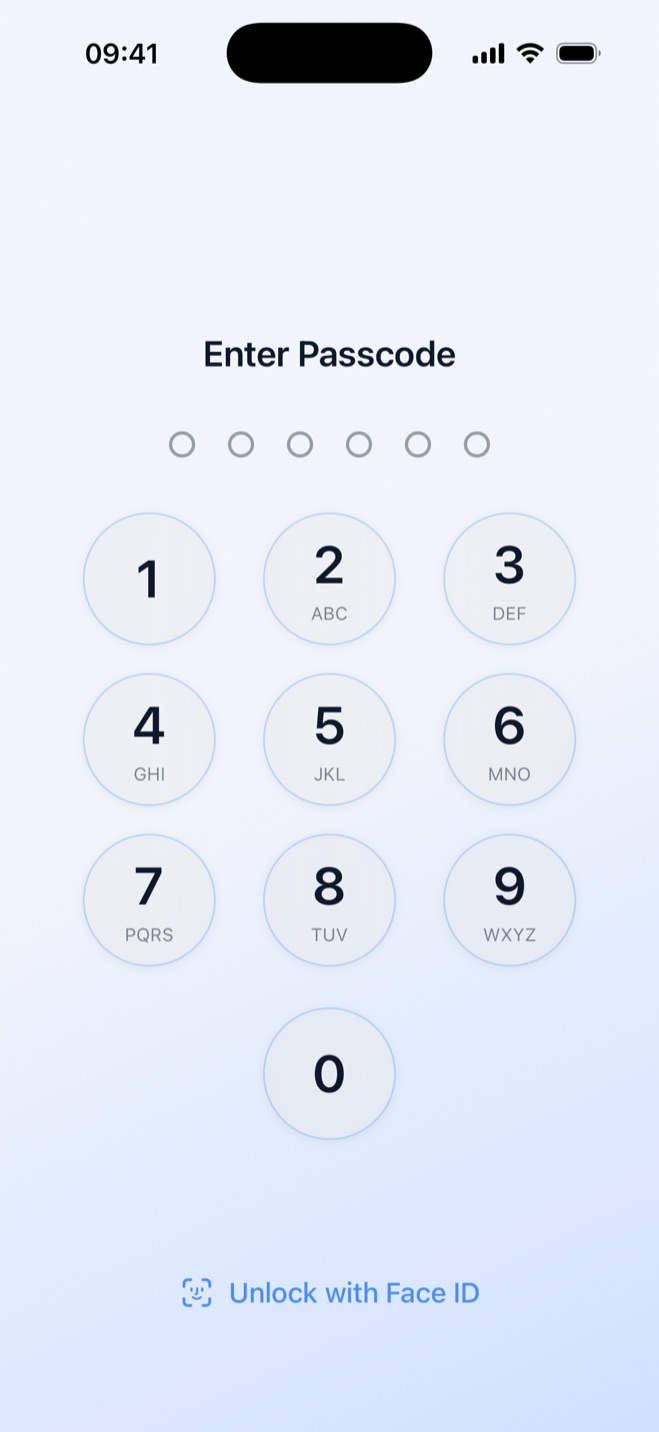
A separate photo vault gives sensitive family photos their own lock. Secure Folder: Privacy Vault keeps imported photos in a separate gallery and opens with its own 6-digit PIN, which is separate from the iPhone passcode.
Secure Folder is local-only. Nothing is uploaded, it uses no iCloud, and it needs no account or email. That gives selected family photos a private place on the iPhone, separate from the Photos app.
Hide private photos in a PIN-protected vault.
Secure Folder is free to download on the App Store, and your photos and videos stay on your iPhone.
Sources
- 1.Apple Support, “Set up parental controls to manage your child's iPhone or iPad,” support.apple.com
- 2.Apple Support, “About Communication Safety on your child's Apple device,” support.apple.com
- 3.Apple, “Manage location metadata in Photos,” support.apple.com
- 4.Apple, “Control access to information in apps on iPhone,” support.apple.com
- 5.Apple Support, “How to use iCloud Shared Photo Library on iPhone or iPad,” support.apple.com
- 6.Apple Support, “Hide photos on your iPhone, iPad, Mac, or Apple Vision Pro with the Hidden album,” support.apple.com