Guides
Can Apps Access Hidden Photos on iPhone?
Mehmet Ali Kısacık · Developer of Secure Folder · August 13, 2026 · 4 min read
Updated September 29, 2026
Can apps access hidden photos on iPhone? Yes: if you give an app Full Access to Photos, Apple says that access includes hidden photos even when the Hidden album is locked; Limited Access and picker-based Private Access expose only what you choose, while no Photos access leaves the app without ongoing access to your library.
In this article
What each photo access choice lets an app see
The important question is how much of the Photos library the app can reach. Each access choice sets a different boundary for that app.1
| Access choice | What the app can access | Effect on hidden photos |
|---|---|---|
| Full Access | The Photos library broadly. | Hidden photos are included, even when the Hidden album is locked. |
| Limited Access | Only the photos and videos you select for that app. | Hidden photos are not exposed automatically. The app is limited to the items you selected. |
| Private Access through Photo Picker | Only items you actively choose in the system picker, without general library authorization. | The app has no standing access to the Hidden album through this picker-based flow. |
| Add Photos Only | The app can add new items to Photos but cannot read existing library content. | It does not get read access to existing hidden photos. |
| None | No ongoing Photos-library access. | The app has no standing access to hidden photos through the Photos permission. |
Limited Access is useful when an app only needs access to a few existing photos. The system Photo Picker is narrower still for apps that support it, because you can hand over a chosen item without granting general PhotoKit access.3
For photos an app is allowed to access, Apple says photo access can include associated metadata such as location and depth information.1
Why the Hidden album lock does not change app permissions
The Hidden album is part of Apple's Photos app. Its lock controls how the album is opened on the device, while third-party photo access is controlled separately by the permission you grant each app. That is why Full Access can include hidden photos even when the album itself is locked.1,5
If iCloud Photos is in use, Apple's support documentation says hidden photos are hidden on your other devices as well. That sync behavior is a separate issue from third-party app permissions; see how the Hidden album works with iCloud and a vault for that distinction.5
Whether Apple itself can access hidden-photo data is also a different privacy question. See how Apple handles hidden photos for that topic.
How to change photo access for an app
Review one app's photo permission
- 1.
- 2.
- 3.
- 4.
Change the selected items later
Apple lets you change a Limited Access selection later in Settings, so you can add or remove the items that app is allowed to reach.3
Check whether apps are using the permissions you granted
Go to Settings > Privacy & Security > App Privacy Report. Apple says the report shows how apps are using permissions you granted and also shows network activity, which gives you a practical place to review whether an app's access still matches what it needs.2
If an app does not need your whole library for what you use it for, you can return to Photos privacy settings and lower its access instead of leaving Full Access in place.1,2
For some photos, move the copy outside the Photos library
Photo permissions govern access to the Photos library. iOS also sandboxes third-party apps, so a Photos permission does not itself grant one app access to another app's private storage.6
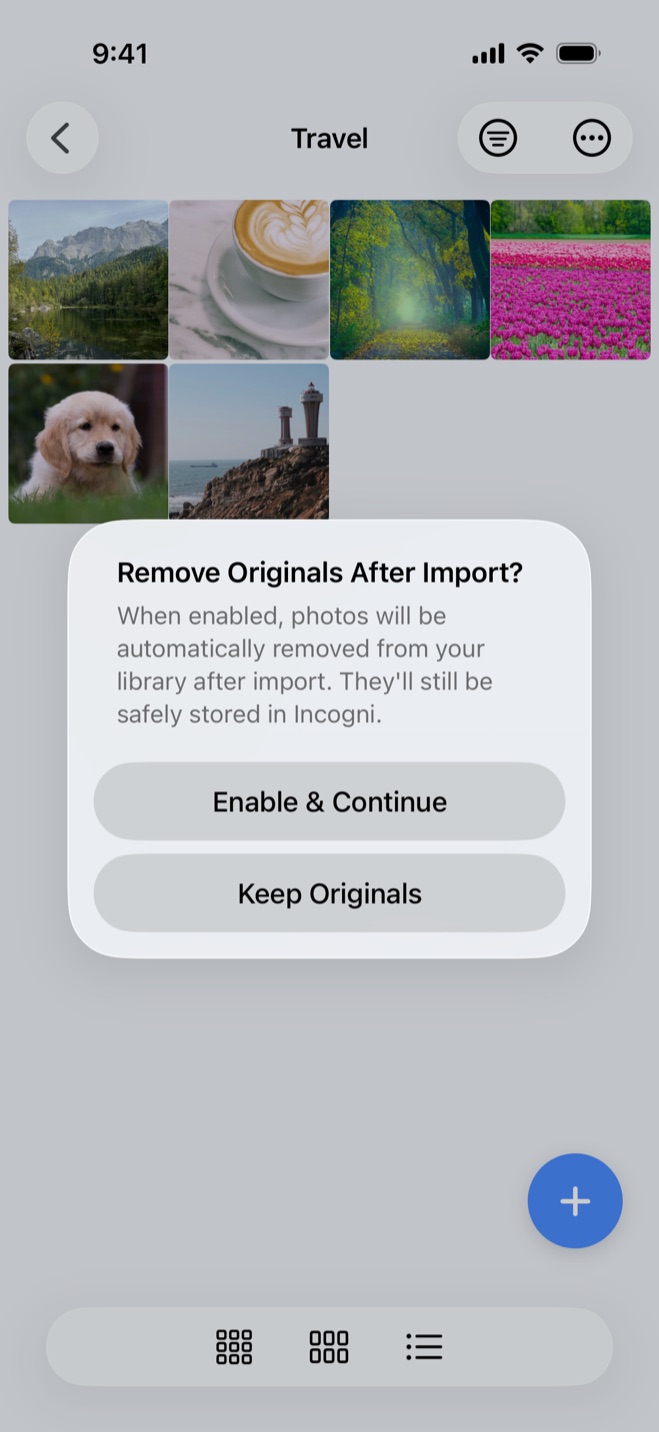
Secure Folder: Privacy Vault imports a copy of a photo into its local vault. On the first import, it asks whether to remove originals after import, and iOS confirms each deletion. Once the original is deleted from Photos, other apps' Photos permissions no longer reach the vaulted copy. If the original remains in Photos, an app with Full Access can still reach that original.1,6
If you are deciding whether that storage model fits your needs, see what to check in a photo vault.
Hide private photos in a PIN-protected vault.
Secure Folder is free to download on the App Store, and your photos and videos stay on your iPhone.
Sources
- 1.Apple, “Photos & Privacy,” apple.com
- 2.Apple, “Control access to information in apps on iPhone,” support.apple.com
- 3.Apple Developer Documentation, “Delivering an Enhanced Privacy Experience in Your Photos App,” developer.apple.com
- 4.Apple Developer Documentation, “PHAccessLevel.addOnly,” developer.apple.com
- 5.Apple Support, “Hide photos on your iPhone, iPad, Mac, or Apple Vision Pro,” support.apple.com
- 6.Apple Platform Security, “Security of runtime process in iOS, iPadOS, and visionOS,” support.apple.com